![emtech_logo_blue.png]](https://44512403.hs-sites.com/hs-fs/hubfs/emtech_logo_blue.png?height=40&name=emtech_logo_blue.png)
The Dashboards module in the Beyond Compliance Platform enables users to visualize and monitor key compliance metrics using datasets from the Data Management section and metrics from the Metrics Library. Dashboards provide actionable insights through customizable charts, tables, and KPIs, supporting data-driven decision-making.
Accessing the Dashboards Module
-
Log in to the Beyond Compliance Platform at app.emtech.com.
-
Navigate to "Dashboards" from the main menu.
-
Select an existing dashboard or click "+ New Dashboard".
Creating a New Dashboard
To build a dashboard:
-
Click "Create New Dashboard".
-
Enter a Dashboard Name and optional Description.
-
Choose which collection this new dashboard should go into and click on "Create"
Adding Charts to Your Dashboard
Dashboards are built by adding charts that visualize metrics. To add a chart:
-
Click "Add a Chart".
-
Choose the metrics or data from your available collections that were saved.
- You can create the cards manually or select from the default cards.
-
Select the Metric from the collection
-
Metrics must be created beforehand using datasets uploaded in the Data Management section.
- Click "Save".
-
You can add multiple charts to a single dashboard to track various metrics in one view or create separate charts for each view.
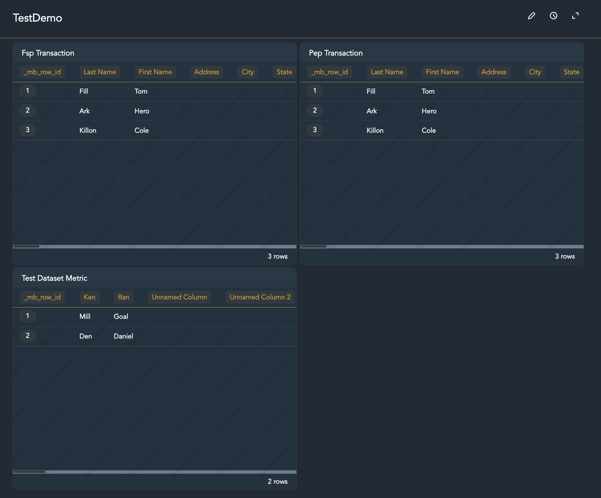
You can edit the existing dashboards by clicking on the "Edit" icon on the right top corner of the dashboard. You can also set up a refresh timer for the auto refresh of the dashboards created, to reflect current data.