![emtech_logo_blue.png]](https://44512403.hs-sites.com/hs-fs/hubfs/emtech_logo_blue.png?height=40&name=emtech_logo_blue.png)
To initiate your sandbox process and connect to the live APIs relevant to your service type, it is essential to register your product on Beyond Sandbox.
To set up your product profile on the platform for testing in the sandbox, please follow these steps:
- Navigate to the “Beyond Sandbox” option on the main menu.
- Click on the “Products” option.
- Select the “Create Product Profile” button located at the top right corner.
Begin by establishing a Test Product and connecting it with the Test APIs. This step is crucial to ensure that the integration functions correctly with the relevant APIs associated with your product's service type.

Create Product Profile
To begin, access the Beyond Sandbox within the platform and locate the "Products" section.
Next, click on the "Create Product Profile" button found on the Products page.
Proceed by following the prompts to enter the necessary details of your product on the subsequent screens.
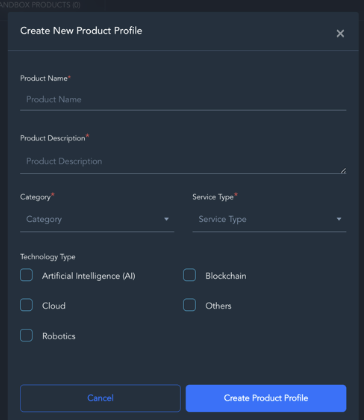
Provide the Product Name and Product Description, and then select the appropriate category, service type, and technology type. Once you have completed these entries, click on the "Create Product Profile" button to proceed.
If you do not see the service type that applies to your product, select the “Other” service type and enter your service type information.
The Bank of Ghana team will be able to provide you the reporting templates that they need you to report against, for the specific data monitoring and reporting process during the sandbox period.
After successfully creating a product profile on the platform, a product card will be displayed in the Test Products section.
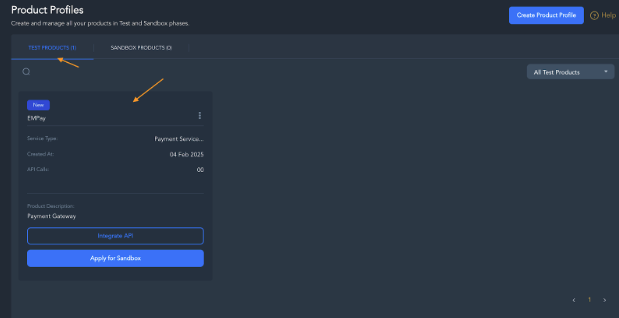
Click on the Product card to view the "Product Dashboard" and "Product Details"
Product Dashboard & Product Details
The Product Dashboard provides a comprehensive overview of all reporting metrics associated with the selected service type for your product profile. You can access the Product Dashboard for both Test API integration and Live API integration activities.
To access the Product Dashboard, follow these steps:
- Begin by selecting the "Products" option from the Sandbox menu.
- You will see tabs labeled "Test Products" and "Sandbox Products."
- Click on "Test Products" to display the product cards for the test products you have created.
- Select a "Product Card" from the list to view important details, including the Product Dashboard and the "Product Details" necessary for API integration.
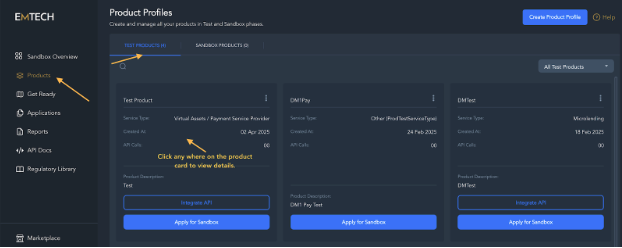

- Click on the "Subscribed APIs" section located on the right to access the relevant API documentation for the product you have configured.
- After successfully completing the integration, you will be able to access the dashboard, where you can observe your test data and track the Key Performance Indicators (KPIs) and metrics that have been enabled on the platform.
- If you have been granted access to the "Live APIs" and have received approval from the regulator to enter the Sandbox, please click on the "Sandbox Products" option to proceed.